
How to Use Mouse Back and Forward Buttons in Safari on Mac
An external mouse can make a Mac desktop setup more comfortable, but its side buttons do not always navigate Safari as expected. You click the rear thumb button to return to the previous page and nothing happens, even though the same button works on another computer or in another browser.
Mac Mouse Fixer solves this with Safari Navigation, a focused feature that connects the standard back and forward mouse buttons to Safari's page history.
What Safari Navigation Does
When Safari is the active app, Safari Navigation gives the two side buttons familiar browser behavior:
- Press the back side button to return to the previous webpage.
- Press the forward side button to move forward again.
- Keep the buttons available for their normal behavior outside Safari.
This makes a regular Logitech, Razer, Corsair, SteelSeries, Keychron, or other external mouse feel more natural on Mac without requiring you to reach for the keyboard or Safari toolbar.
Why External Mouse Buttons May Not Work in Safari
Apple supports moving between Safari pages with toolbar buttons, keyboard shortcuts, and Multi-Touch gestures. A Magic Mouse can swipe between pages, while a trackpad can use a two-finger swipe. A traditional external mouse does not provide those touch gestures.
Many external mice include dedicated thumb buttons, but their behavior can depend on the mouse firmware, macOS, and optional manufacturer software. The button press may reach the Mac without being translated into Safari's Back or Forward command.
Safari Navigation handles that translation directly when Safari is in front.
How to Enable Safari Navigation
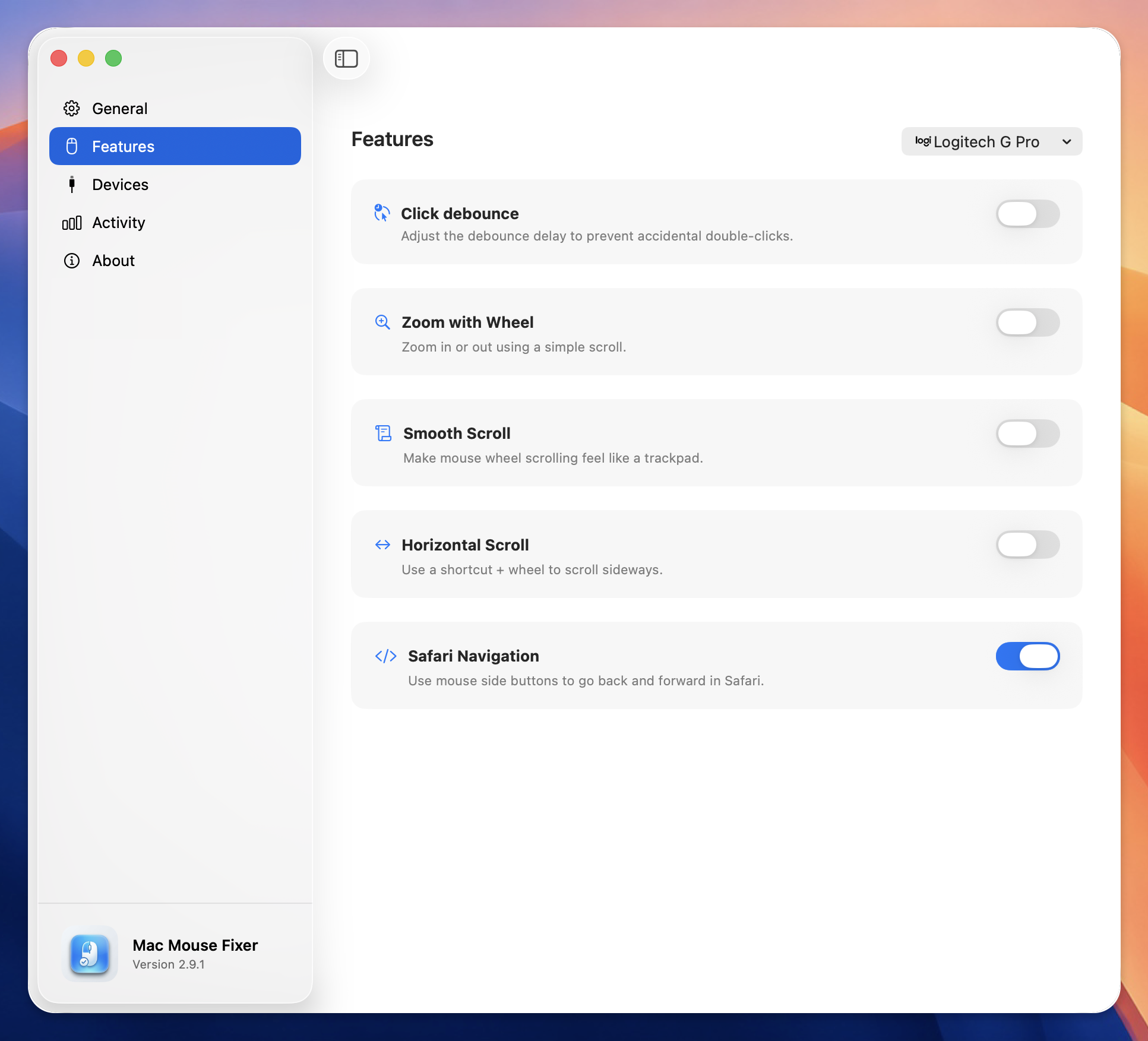
- Open Mac Mouse Fixer.
- Select Features.
- Find Safari Navigation.
- Turn the feature on.
- Open Safari and visit a few pages in the same tab.
- Press the rear side button to go back, then press the front side button to go forward.
Mac Mouse Fixer needs Accessibility permission to recognize and translate mouse input. If the Safari Navigation switch is unavailable, open macOS System Settings > Privacy & Security > Accessibility and enable Mac Mouse Fixer.
Toggle Safari Navigation from the Menu Bar
You can also turn Safari Navigation on or off without opening the main settings window:
- Click the Mac Mouse Fixer icon in the menu bar.
- Find Safari Navigation.
- Use the switch to enable or disable it.
The setting is saved with your active mouse profile, so different profiles can use different feature configurations.
How It Differs from Horizontal Scrolling
Safari Navigation changes the page in the current tab. Horizontal scrolling moves sideways within the current page, table, or canvas.
If you want both behaviors, enable Safari Navigation for the mouse side buttons and use Mac Mouse Fixer's Horizontal Scroll feature with a modifier and the mouse wheel. The two features solve different problems and can be enabled together.
Does It Affect Other Browsers?
Safari Navigation is limited to Safari. It does not send Safari shortcuts while another app is active, which prevents the side buttons from triggering unwanted commands elsewhere.
This focused behavior is useful when your mouse already works correctly in Chrome, Firefox, or another browser but needs help specifically in Safari.
Make Safari Easier to Navigate with Any Mouse
You do not need a Magic Mouse or trackpad just to move naturally through Safari history. Mac Mouse Fixer turns the side buttons already on your external mouse into reliable Back and Forward controls for Safari.
Download Mac Mouse Fixer and enable Safari Navigation from the Features page or menu bar.