
Safari Back and Forward Mouse Buttons Not Working on Mac
If the back and forward buttons on your external mouse do nothing in Safari, the mouse is not necessarily broken. macOS may still recognize the device while Safari receives no navigation command from its side buttons.
This guide explains the common causes and the quickest way to restore browser navigation.
Test Whether Safari Has Page History
Before changing any settings, open several links in the same Safari tab. The Back button in Safari's toolbar should become available.
If you opened each page in a new tab, there is no earlier page in the current tab to return to. In that case, clicking a mouse back button correctly appears to do nothing.
You can also test Safari itself with its keyboard shortcuts:
- Press Command + Left Bracket to go back.
- Press Command + Right Bracket to go forward.
If those shortcuts work, Safari history is available and the missing step is translating your mouse buttons into the matching navigation commands.
Check Whether macOS Detects the Side Buttons
Try the buttons in another browser or app. If neither button works anywhere, reconnect the mouse and check its battery, Bluetooth connection, USB receiver, or cable.
Some mice store button assignments in onboard memory. Others depend on manufacturer software. A button configured for a macro, application switcher, or disabled action may no longer behave as a standard Back or Forward button.
If the buttons work outside Safari but not inside it, use a Safari-specific fix rather than replacing all your mouse settings.
Enable Safari Navigation in Mac Mouse Fixer
Mac Mouse Fixer includes a dedicated Safari Navigation feature for external mouse side buttons.
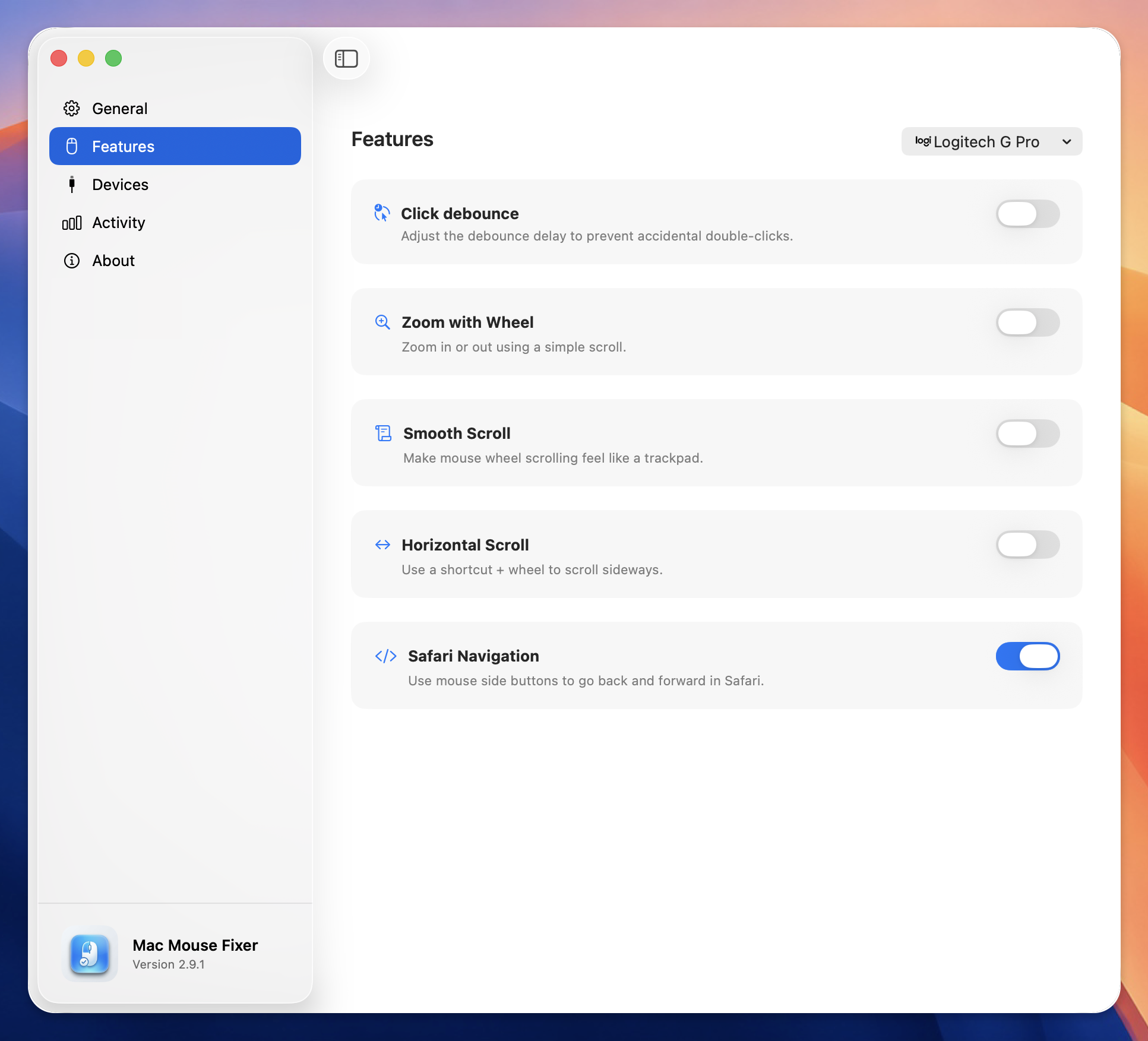
- Open Mac Mouse Fixer.
- Go to Features.
- Enable Safari Navigation.
- Return to Safari.
- Test the rear side button for Back and the front side button for Forward.
You can later toggle the feature directly from the Mac Mouse Fixer menu bar menu.
Allow Accessibility Permission
Mac Mouse Fixer needs Accessibility access to translate mouse input into Safari navigation.
Open System Settings > Privacy & Security > Accessibility, find Mac Mouse Fixer, and turn it on. If macOS asks you to quit and reopen the app, follow the prompt before testing again.
The feature also needs Mac Mouse Fixer to be active. Check the app's menu bar icon and confirm that Safari Navigation is enabled.
Check Your Active Mouse Profile
Mac Mouse Fixer stores Safari Navigation with the active mouse profile. If the feature worked earlier and suddenly stopped after you changed profiles, open the menu bar menu and verify both items:
- The expected profile is selected.
- Safari Navigation is switched on for that profile.
This profile-aware behavior lets you enable Safari navigation for a mouse with thumb buttons while keeping a simpler configuration for another device.
Avoid Conflicting Mouse Utilities
Running multiple mouse customization tools can cause the same side-button input to be intercepted or remapped more than once. One utility may send Back while another replaces the button with a different shortcut.
Temporarily disable overlapping button assignments in other mouse software, then test Safari Navigation again. You do not need to remove manufacturer software if it is required for DPI, lighting, or firmware updates; avoid assigning the same side buttons in both apps.
Back Works but Forward Does Not
Forward is only available after you have gone back. Test it in this order:
- Visit three pages in one tab.
- Press the rear side button once.
- Press the front side button once.
If Back works in that sequence, Safari Navigation is active. The Forward button will have no effect when you are already viewing the newest page in the tab's history.
A Focused Fix for Safari
Safari already supports history navigation through its toolbar, keyboard shortcuts, and gestures on Apple pointing devices. Safari Navigation brings the same essential workflow to the physical side buttons on a standard external mouse.
For the complete setup walkthrough, read How to Use Mouse Back and Forward Buttons in Safari on Mac.
Download Mac Mouse Fixer to make your external mouse navigate Safari naturally.